
Device identification
This page walks you through the one-line process of automatically associating applicant device information with Inscribe Customer objects. To learn more about the additional fraud protection provided by sending Inscribe device information, check out our Help Center.
To allow Inscribe to uniquely identify an applicant's device and associate it with the corresponding Customer object, you need to expose the applicant to a https://verify.inscribe.ai page. To achieve this without having any impact on your existing flow, we recommend embedding this page as a hidden iframe within an already-existing web page shown to the user.
To match the applicant's device information with the correct Customer object within Inscribe, pass the Customer ID in the URL in the following format: https://verify.inscribe.ai?customerId={CustomerID}. Note that the Customer ID is returned in response to POST and GET requests to the Customer endpoint under the key id.
Example: verifying a customer identity
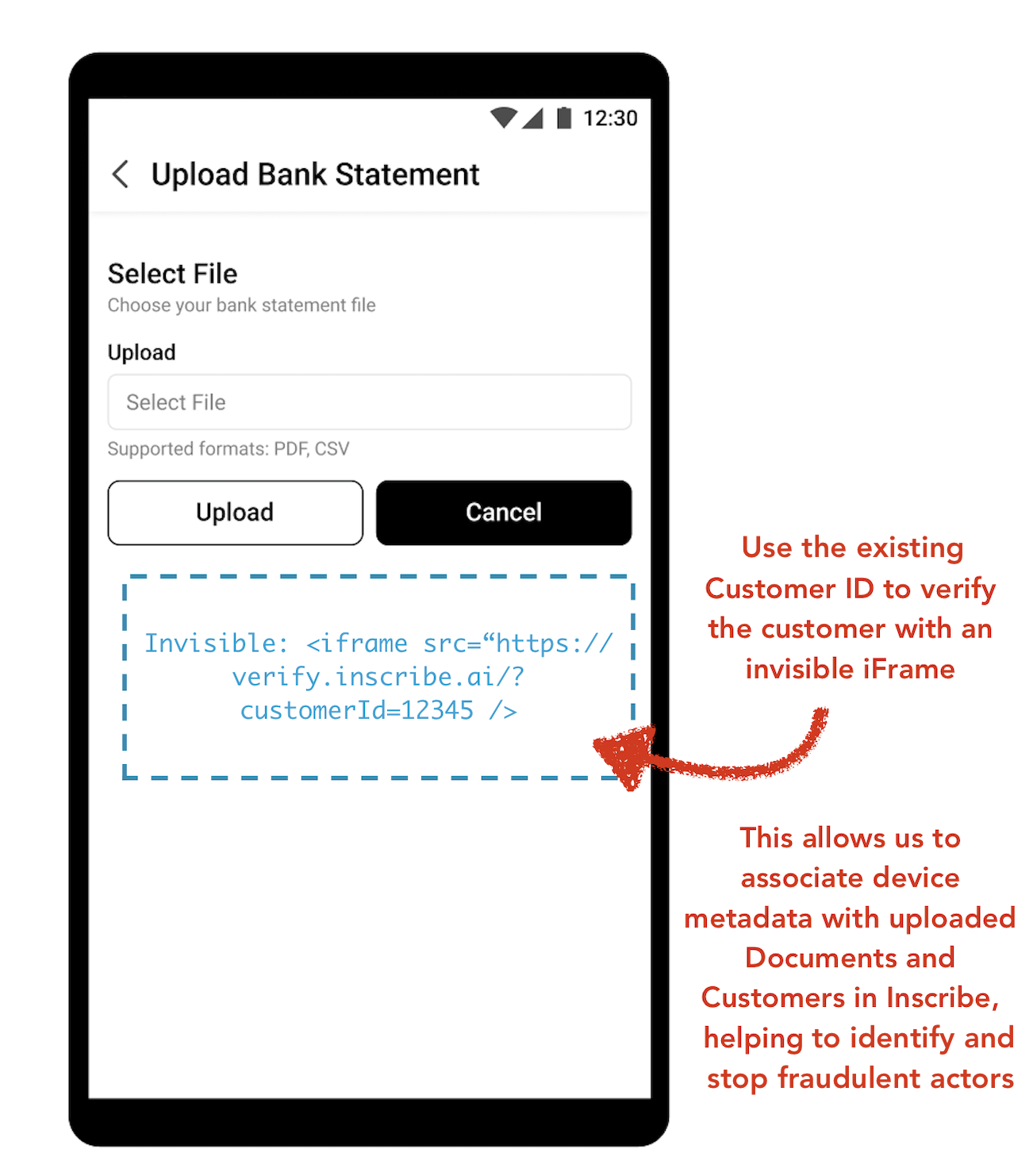
Suppose you have an existing integration with Inscribe where you collect some documents from your applicants during onboarding, and upload them via API to Inscribe. Upgrading this integration to send device information to Inscribe would require choosing one of the pages shown to the user during onboarding, and embedding the https://verify.inscribe.ai?customerId={CustomerID} URL for the corresponding Customer object as a hidden iframe. To ensure Inscribe gathers the device information in time, the page should be chosen so that the applicant visits the page before or at the point documents are uploaded to Inscribe. In particular, the Customer object for the applicant should be created before the documents are uploaded.
Content Security PolicyIf you're enforcing Content Security Policy, you will need to ensure you support embedding https://verify.inscribe.ai pages as iframes. This can be done by adding
child-src https://verify.inscribe.aito your policy.
Updated 11 months ago